One Stop Shuffle
2 in 1 USB 3.0 Type C External DVD RW CD Writer Slim Drive Burner Reader Player Optical Drives For Laptop PC Portable DVD Burner
2 in 1 USB 3.0 Type C External DVD RW CD Writer Slim Drive Burner Reader Player Optical Drives For Laptop PC Portable DVD Burner
Couldn't load pickup availability
SPECIFICATIONS
Application: Desktop,Laptop,External
Brand Name: ammtoo
Choice: yes
Disc Loading Mode: Tray Type
Disc Standard: DVD+ RW
High-concerned chemical: None
Installation Method: External
Interface Type: USB 3.0
Origin: Mainland China
Package: Yes
Recording Format: DVD+ RW
Type: CD-RW
About this item
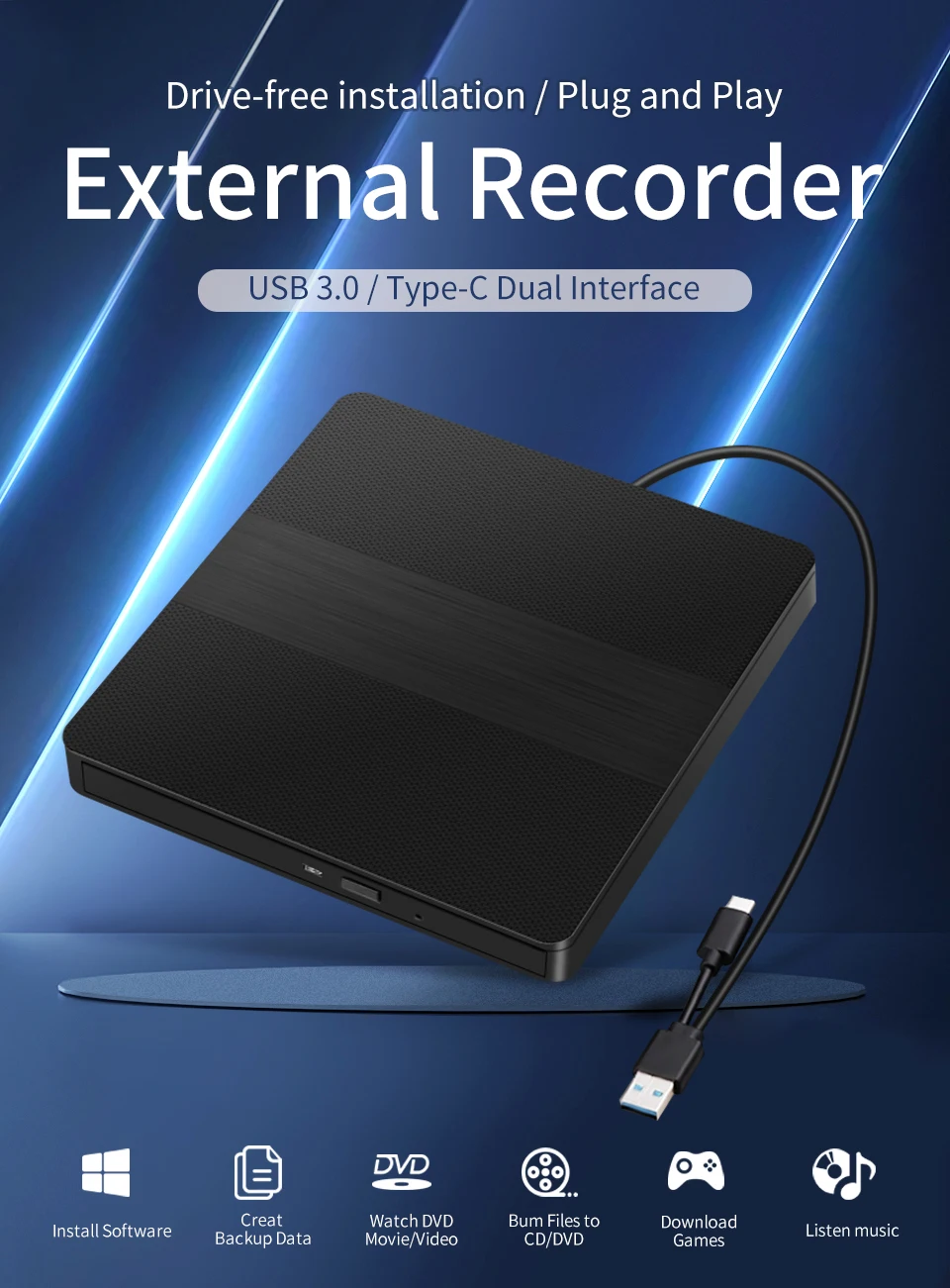
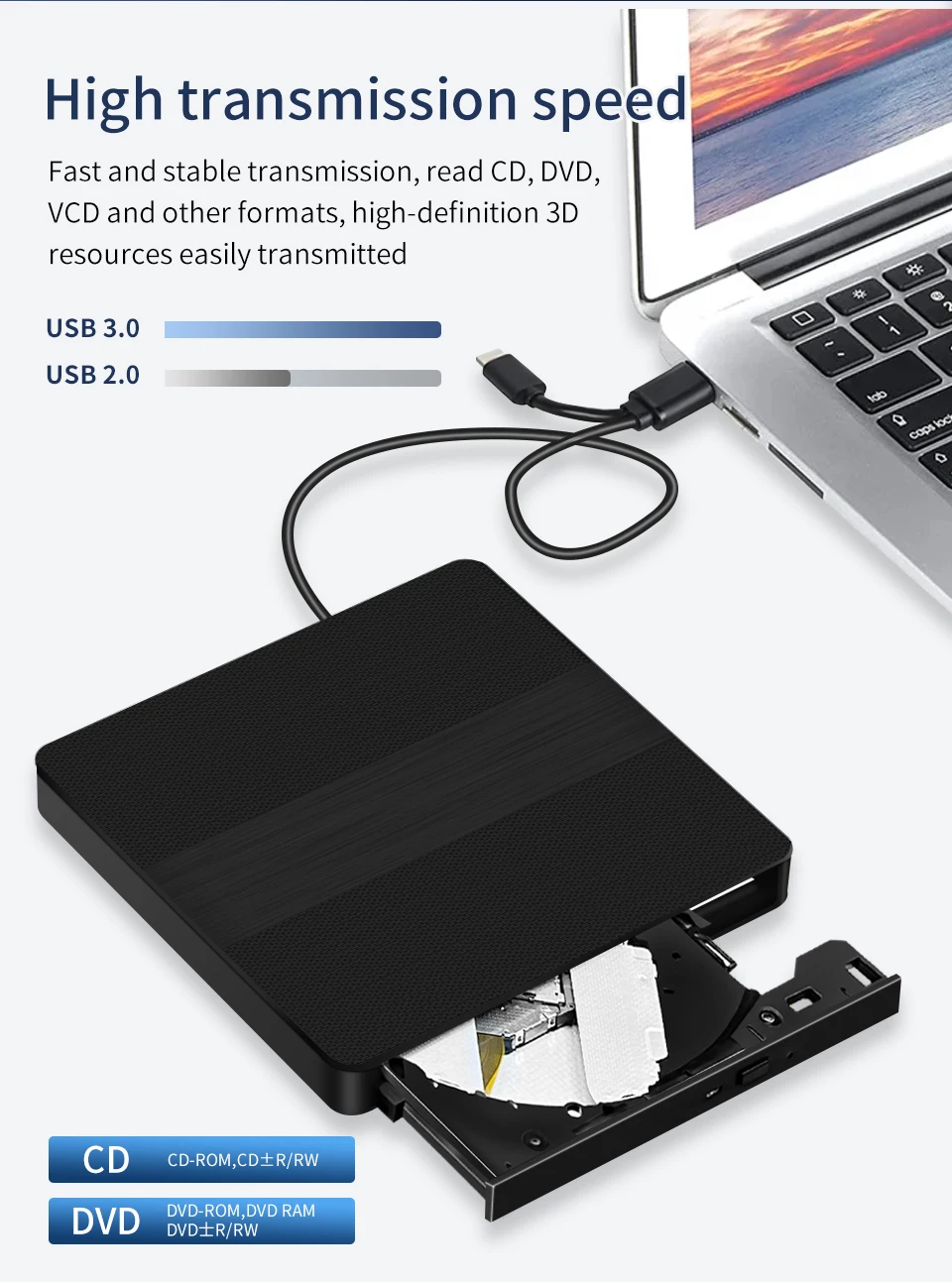
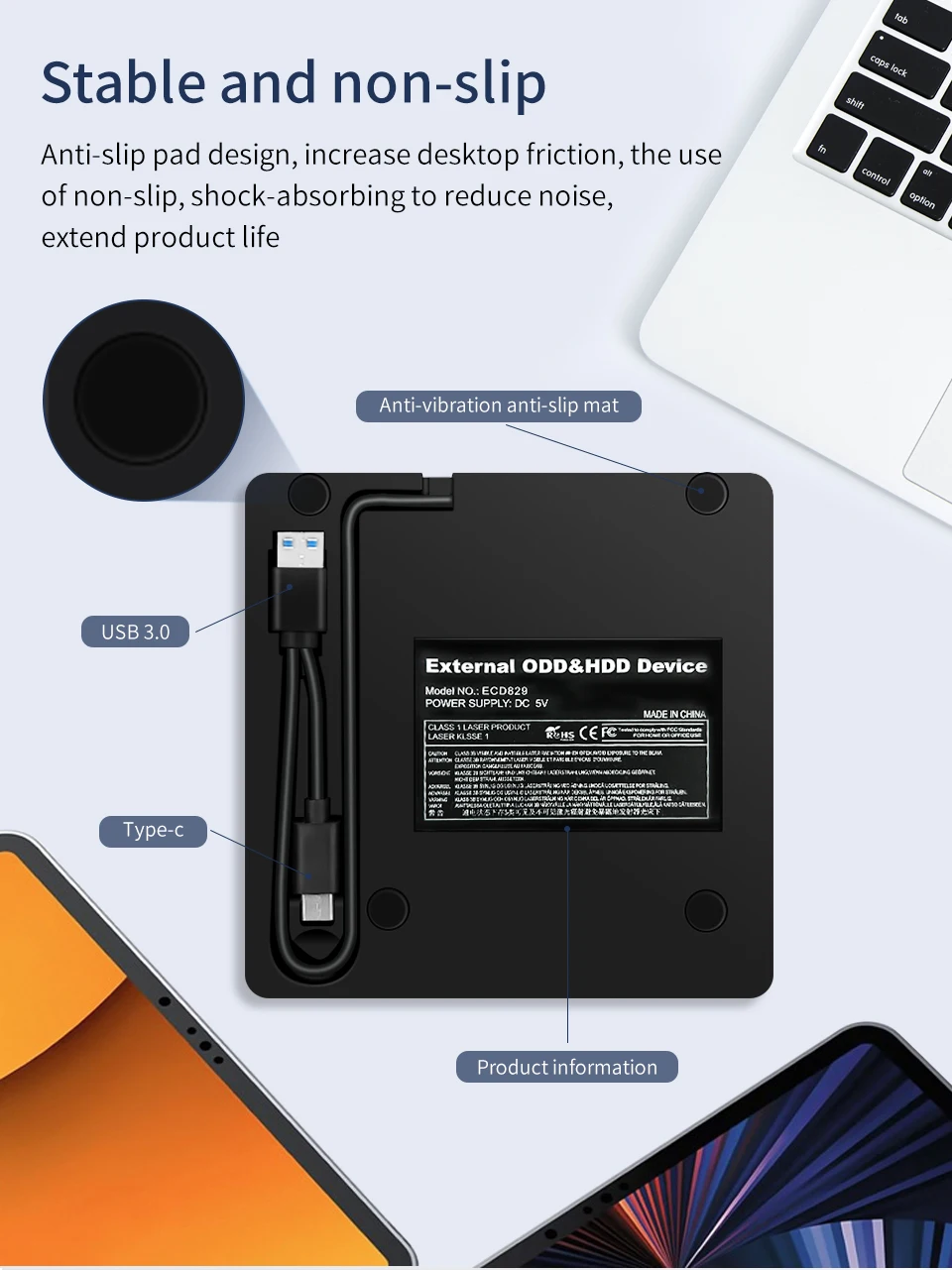
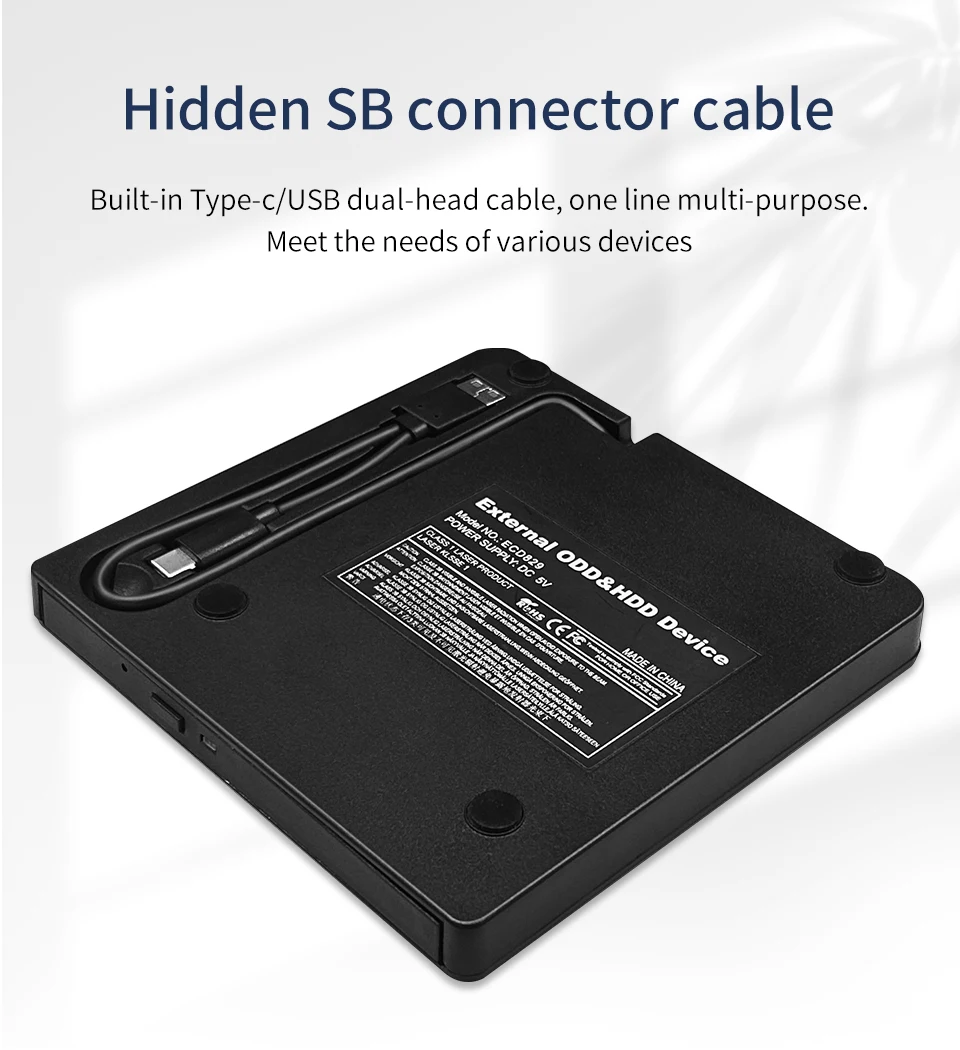
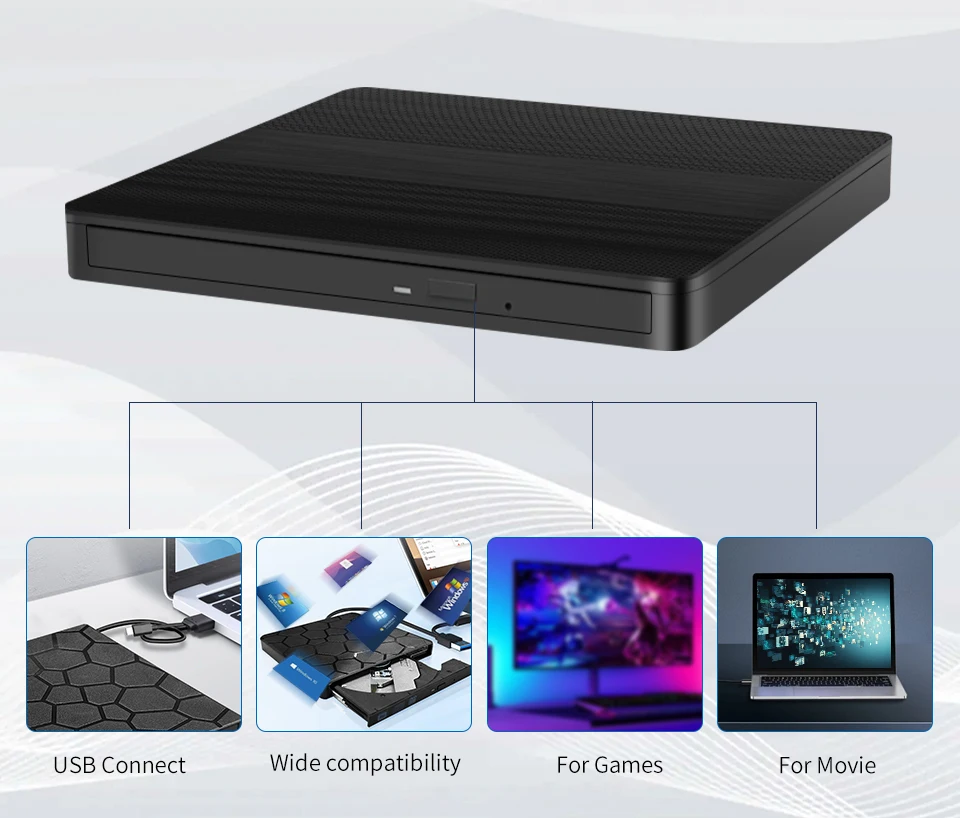
The external mobile optical drive box is suitable for desktop and laptop computers with USB2.0 or 3.0 interface protocol. It realizes the function of reading information between the external optical drive and the computer through the USB interface.
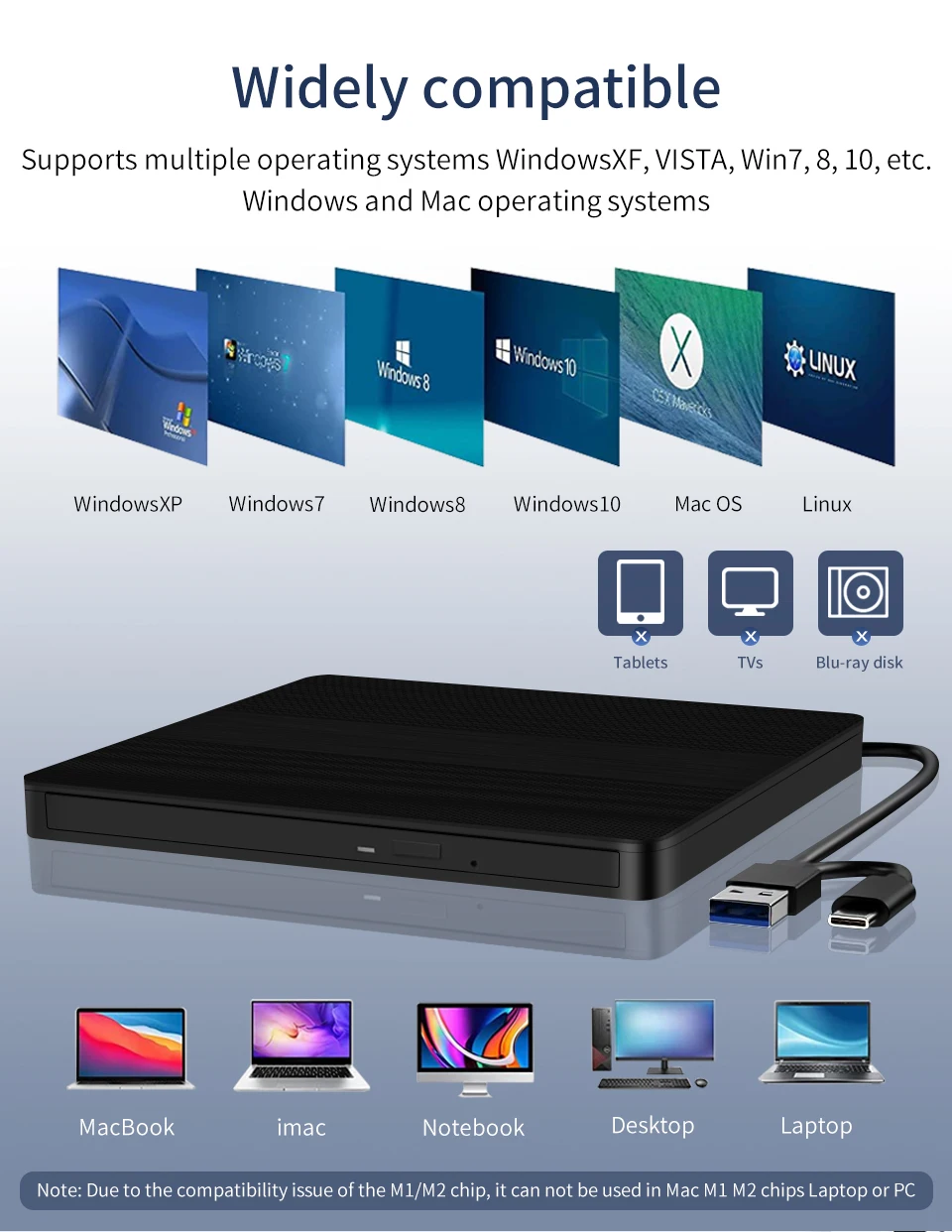
*Compatible with WindowsXP/Wind8/Wind7/Wind10, Mac IOS systems.
*The internal laser light source may be harmful to your face and eyes, please do not look directly at it.
*No need to install driver, supports plug and play.
*Compatible with USB3.0 port and below ports USB2.0, USB1.1, the work efficiency is more stable. Applicable more widely.
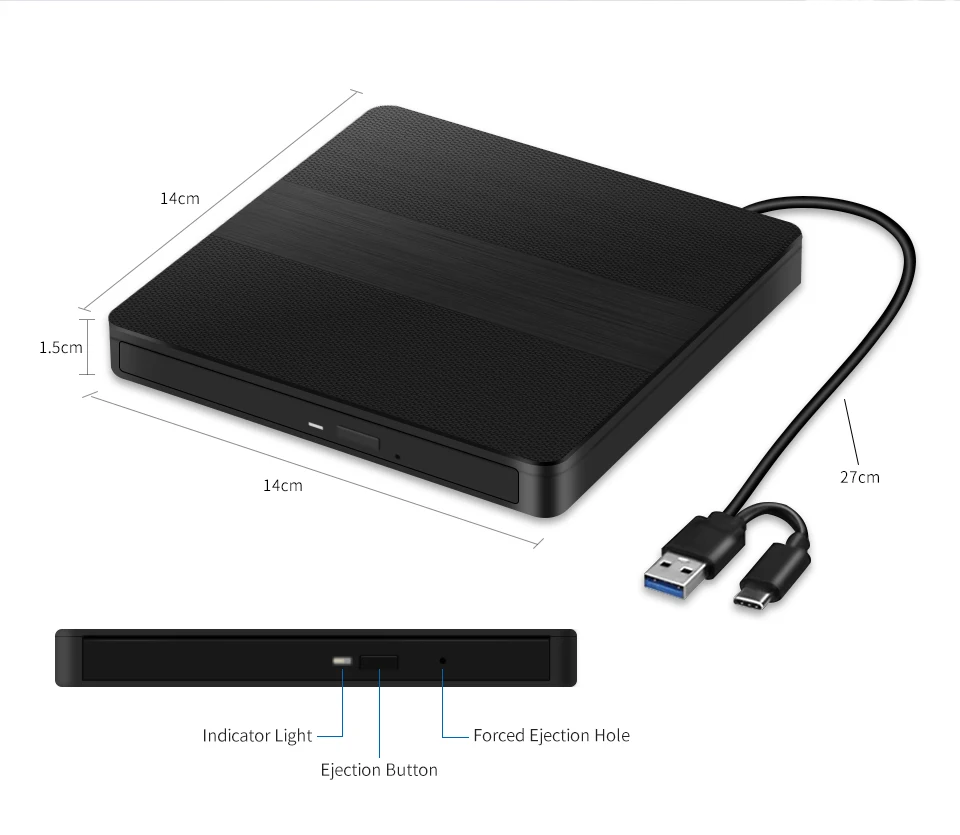
Usage tutorial
1. Connect the DVD drive:
Connect to the computer through a USB port. Ensure a secure connection, as computers typically automatically recognize new devices.
2. Open the DVD drive
Press the eject button of the optical drive, and the optical drive tray will pop out.
-Be careful to place the DVD disc in the center of the tray, ensuring that the disc label is facing up. Gently press to ensure the disc is securely fastened.
3. Read DVD content
-Push the tray back, and the optical drive will automatically read the disc. Wait for the system to load DVD content. It will take several tens of seconds, please be patient. If you click to open the folder just after inserting the disc, and the disc has not been read yet, it will automatically pop up.
-On some computers, two DVD folders will be displayed. Please be patient and wait for them to be read. After successful reading, one of the folders will disappear. Simply open the remaining folder.
4. Play DVD
-Double click to open the folder, find the contents inside, and you can view them..
6. Pop up the DVD disc
-After the playback ends, you can click on the optical drive icon in the bottom right corner of the computer and select the "Pop Up" option.
matters needing attention:
1. Please be patient and wait for the optical drive to read the data. If the data is not read yet, click on the folder and the disc will pop up.
2. The indicator light is not always on, it lights up intermittently.